
Step 1: Open the Pentesting section
After logging in, you land on the Dashboard - an overview of all your operations: vulnerabilities found, assets covered, security score, and trends over time.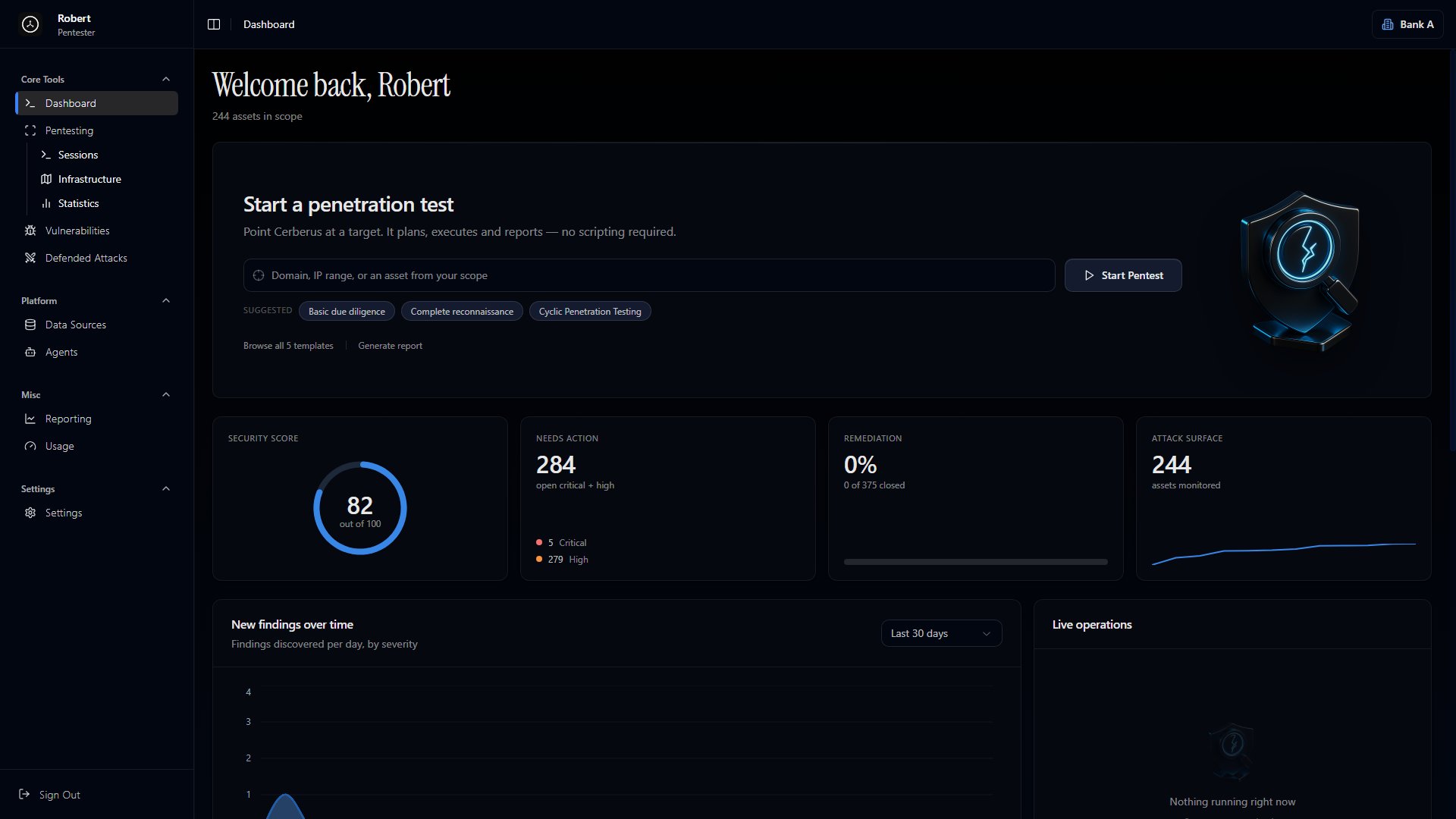
- Sessions - launch pentests and review previous runs
- Infrastructure - the asset map and the relationships between assets
- Overview - aggregate statistics for your testing scope
Step 2: Run your first prompt
Go to the Sessions tab within Pentesting. From here you can:- Run automated pentesting with AutoPT
- Check for vulnerabilities
- Automate reconnaissance
- Run OSINT against people with Auto-OSINT
- From a template - pick one of the ready-made templates with a preconfigured form and scope. This is the fastest way to get results.
- Custom mode (Customize) - write your own prompt from scratch, for when a template doesn’t fit your task.
Running from a template
Click New Execution. The Start a new run panel opens with a template picker.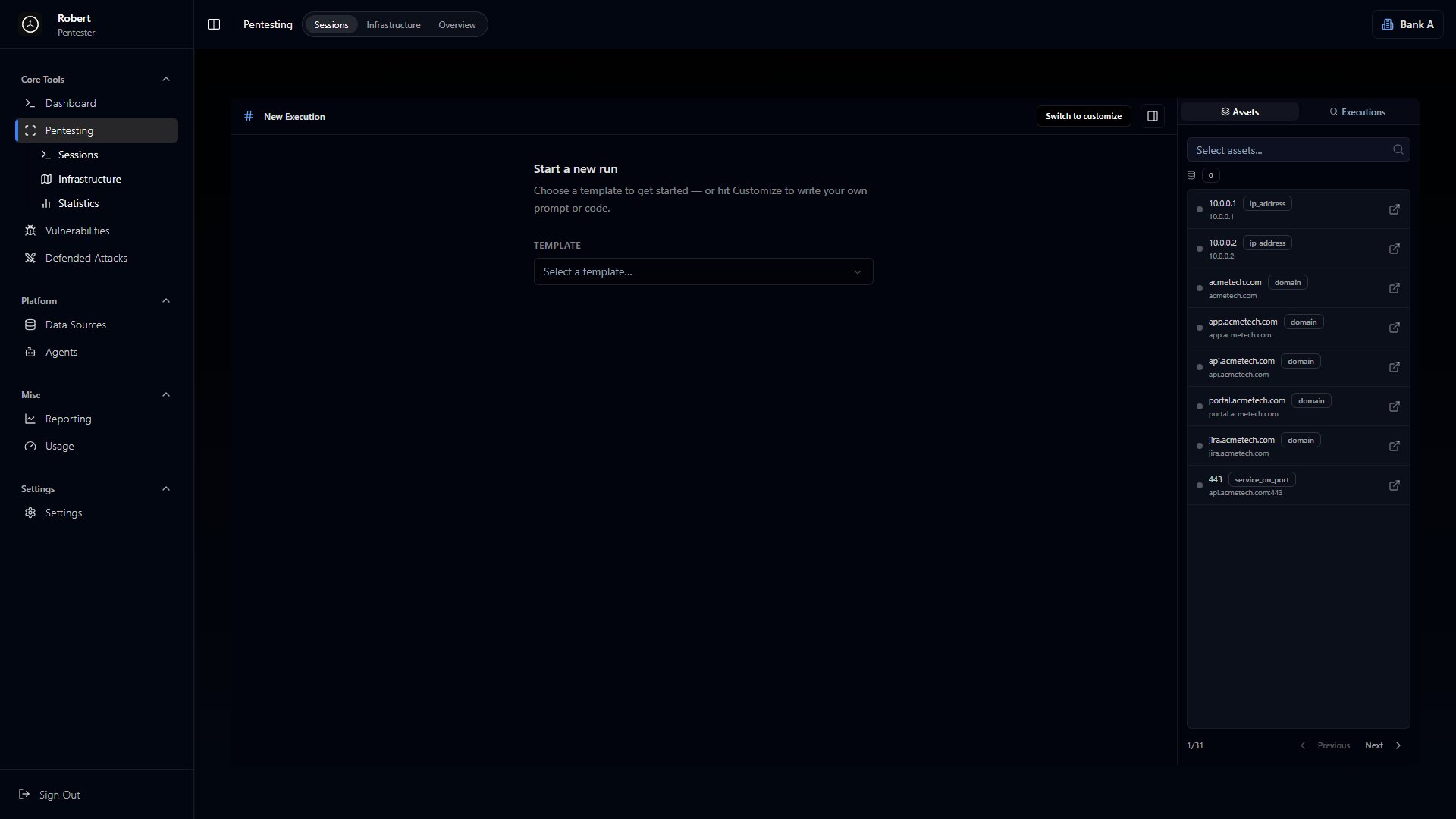
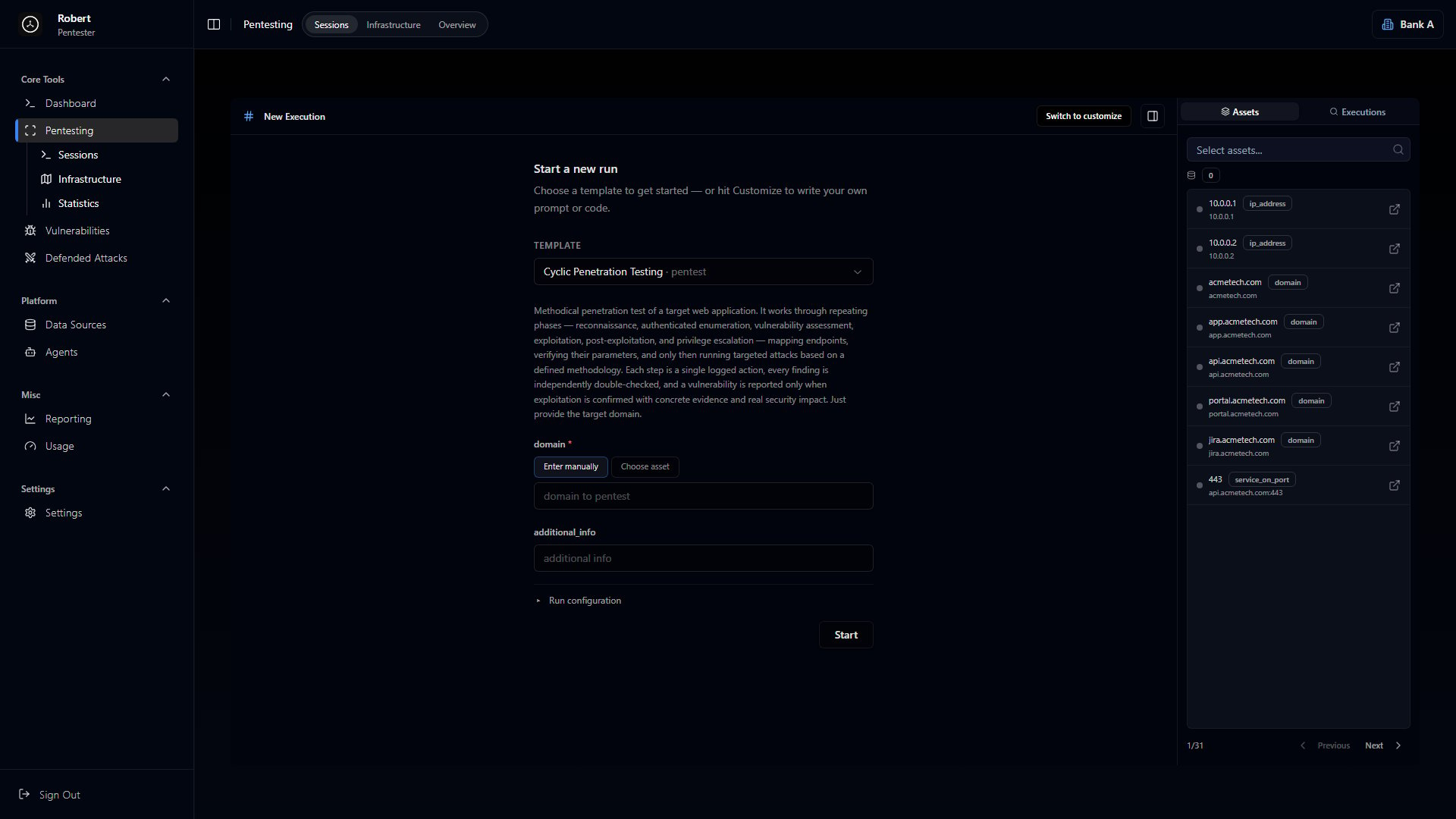
- domain - the target. Enter it manually (Enter manually) or pick from your existing assets (Choose asset).
- additional_info - optional extra context to steer the run.
Custom mode (Customize)
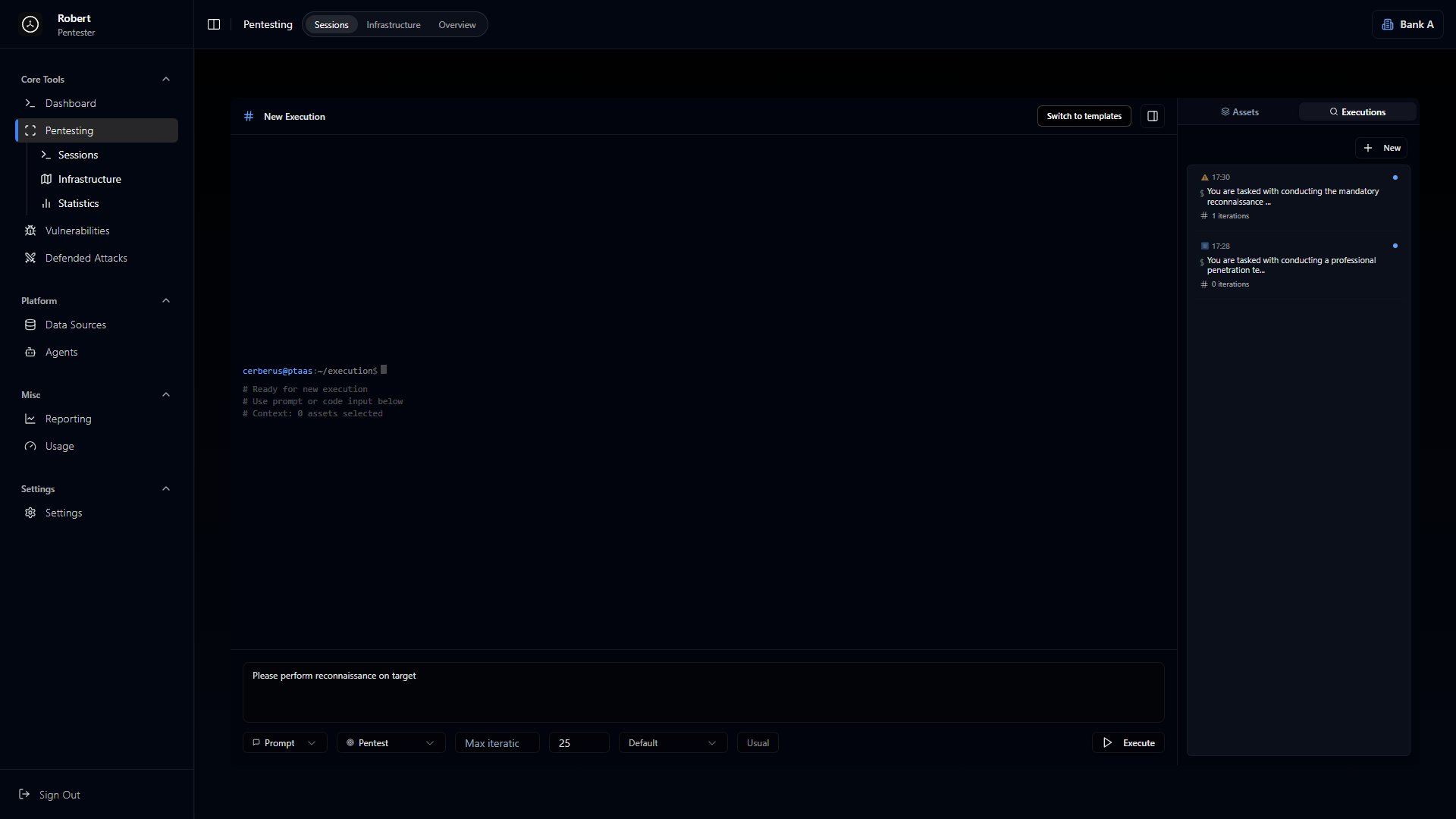
Click Switch to customize on the right. A terminal and a prompt input appear at the bottom.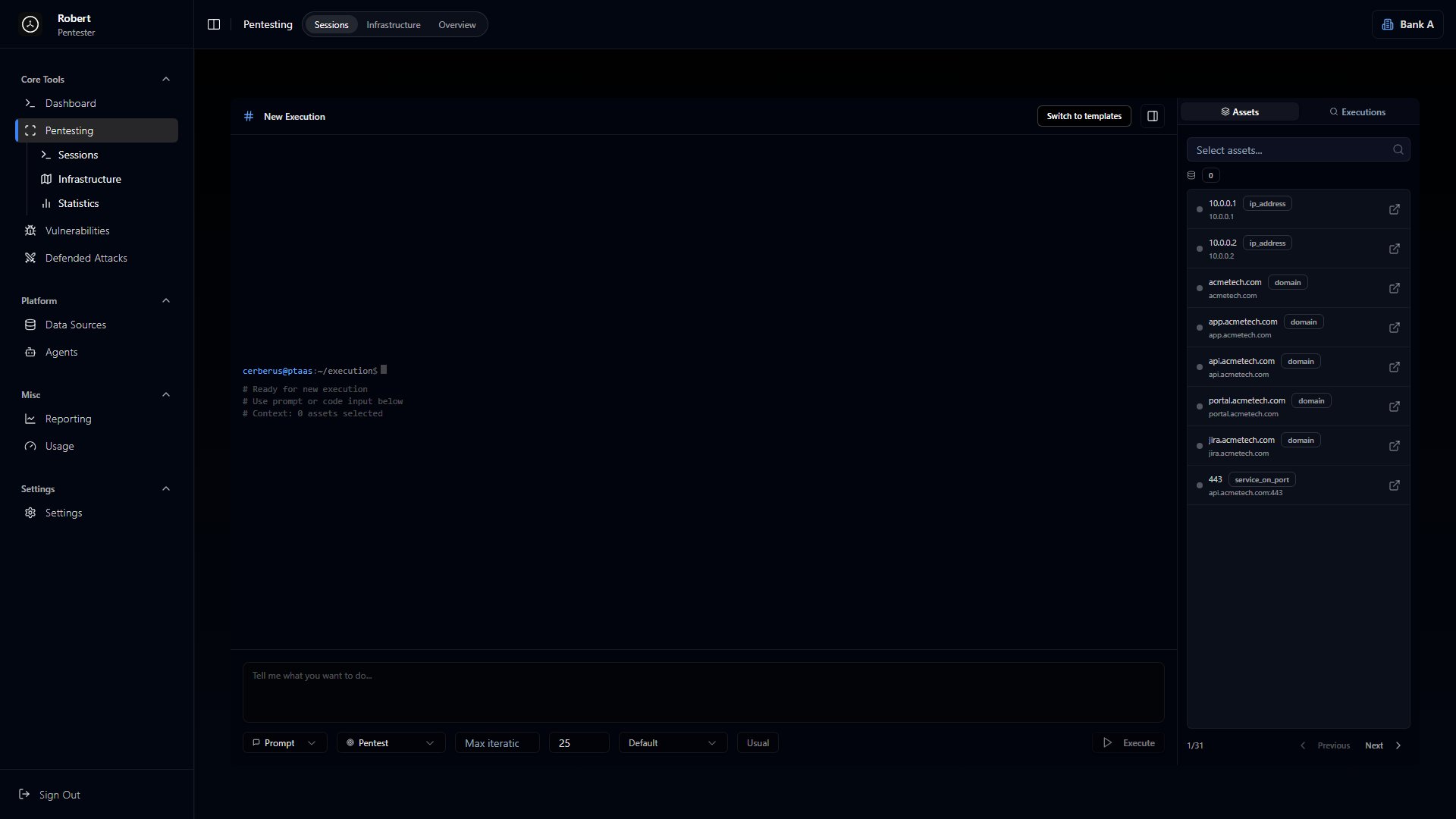
- Max iterations - the maximum number of times the agent will restart, picking up where it left off, before it stops.
- RID (Runner ID) - the identifier of the code runner that will execute the code for this session.
- Service - which service AutoPT will test.
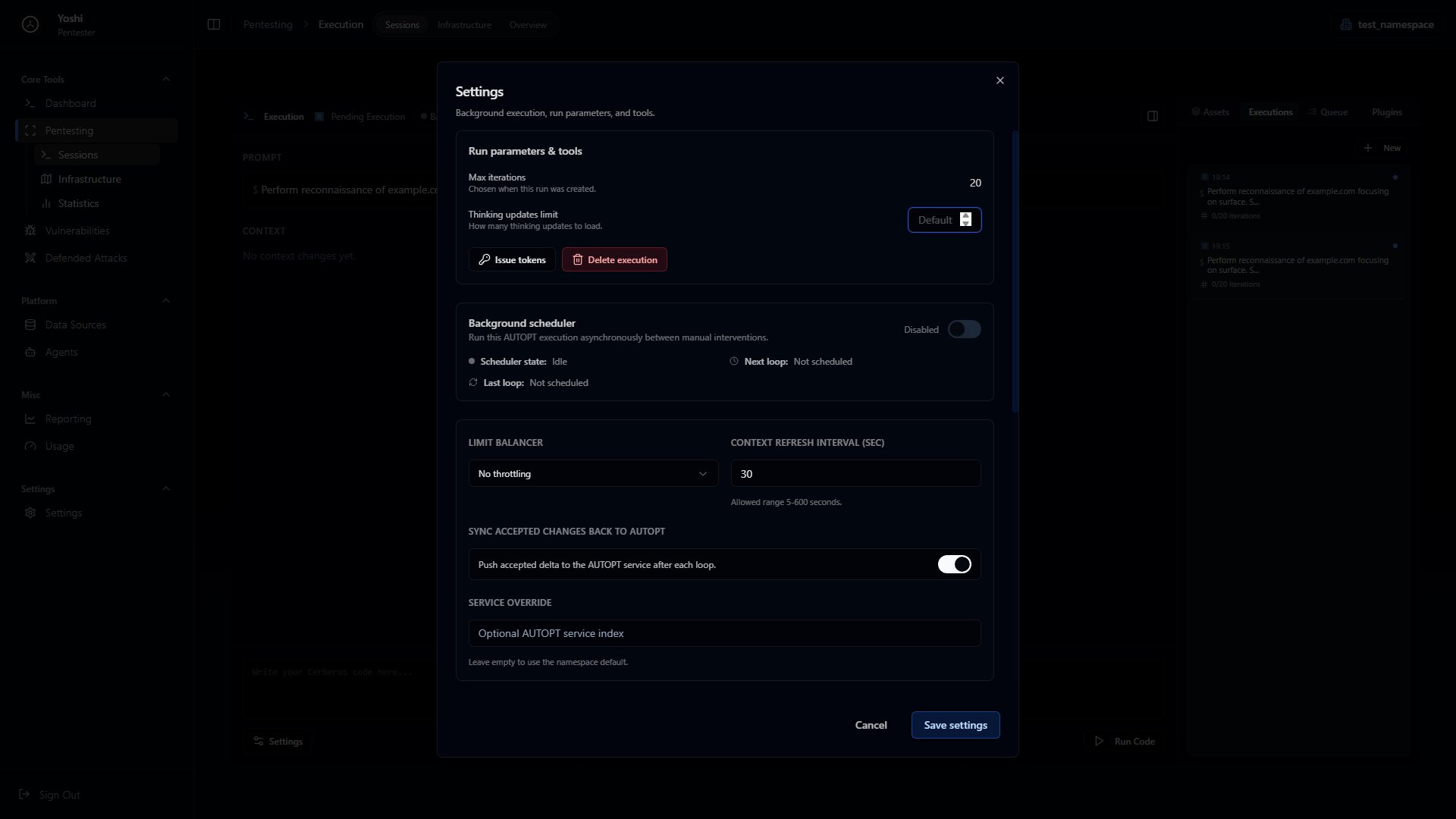
- Issue tokens - issue the runner token. Enter the same ID you set before the prompt and click Issue runner token.
- Set Max iterations and the thinking updates limit for the run.
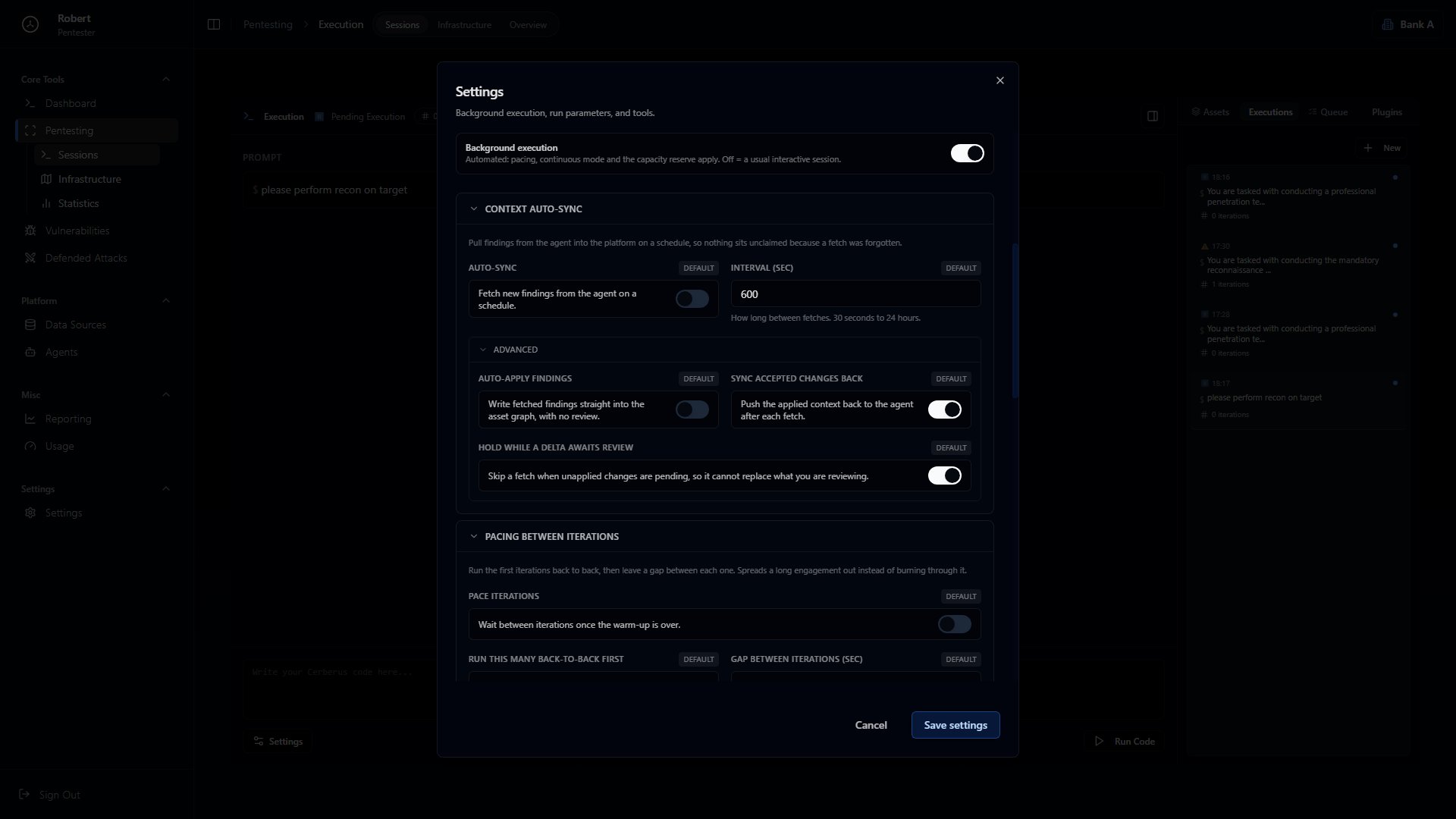
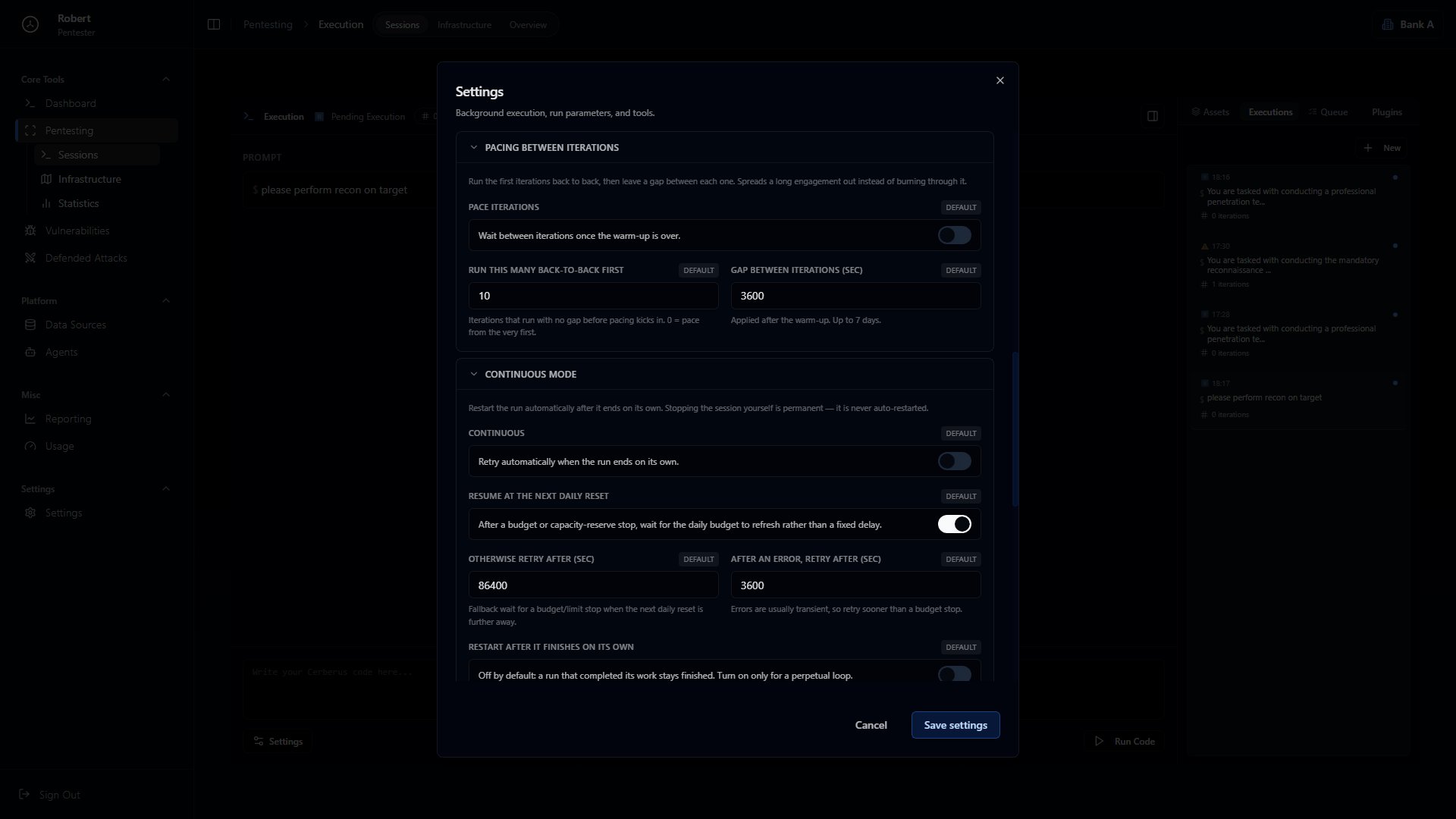
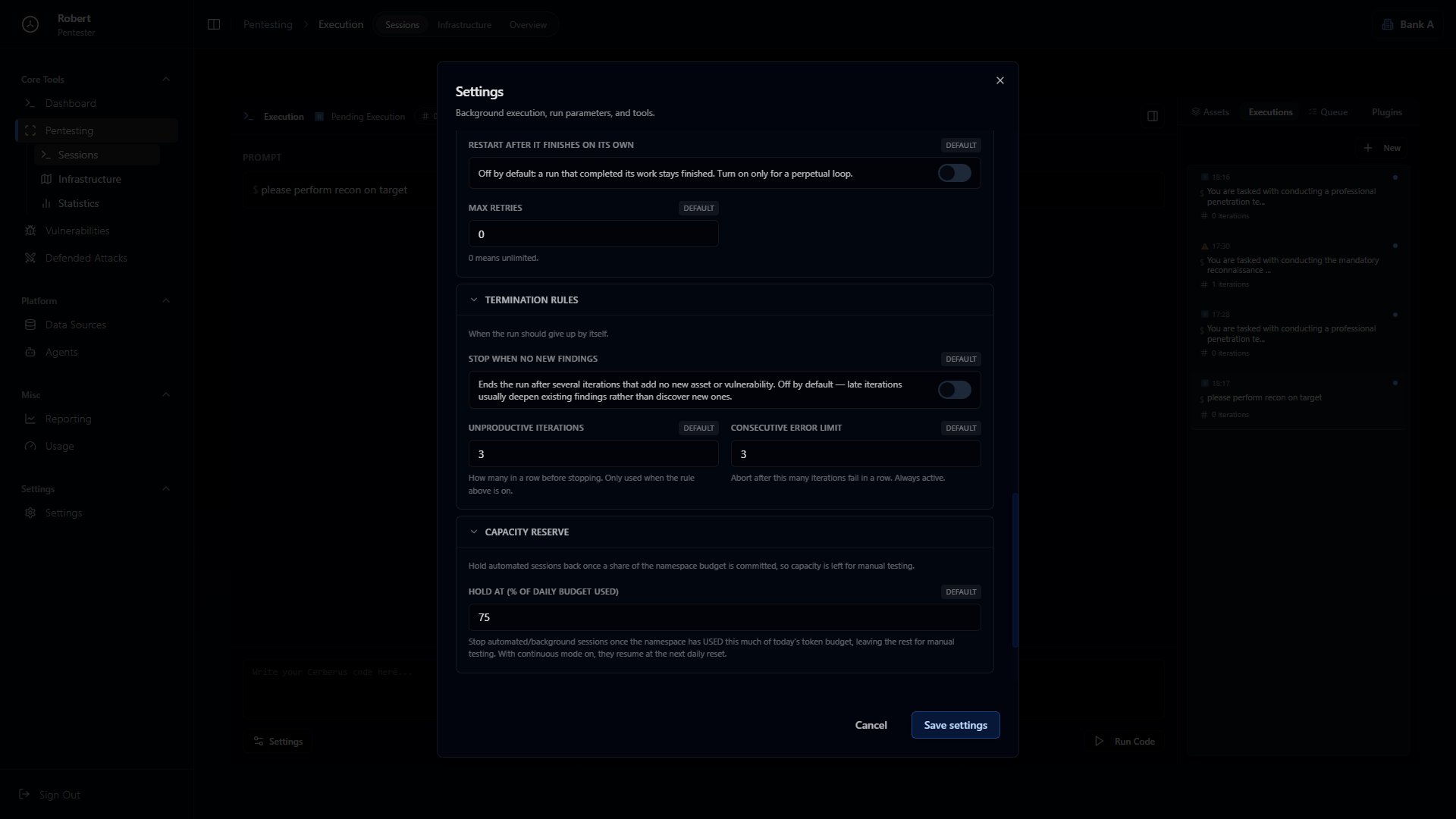
- Configure the Background scheduler - run asynchronously between manual interventions: scheduling, intervals (limit balancer), and the context refresh interval (5-600 sec).
- Push accepted delta - automatically apply accepted context changes after each iteration.
- Service override - override the AutoPT service (leave empty to use the namespace default).
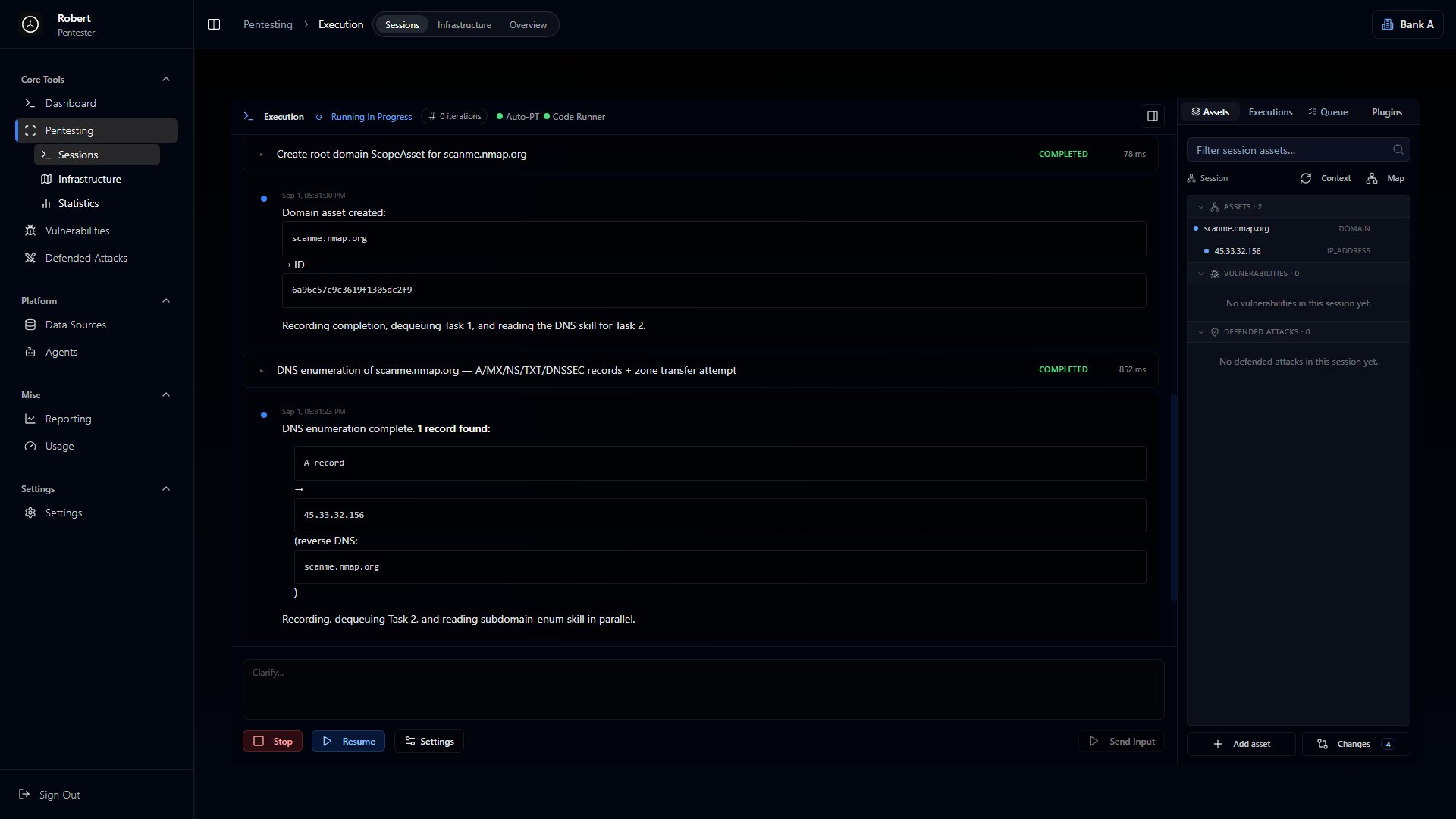
- A plain prompt acts as a small correction.
/pin <prompt>- pin an instruction so it carries over from one iteration to the next./unpin <ID>- remove a pin from memory. The ID is a sequential number (1, 2, 3…) assigned to pins in order./do <task>- add a task directly to the queue.
- Assets - all assets, vulnerabilities, and defended attacks.
- Executions - other runs.
- Queue - the queue of tasks AutoPT set for itself (its to-do list). It also contains History - the list of tasks already completed.
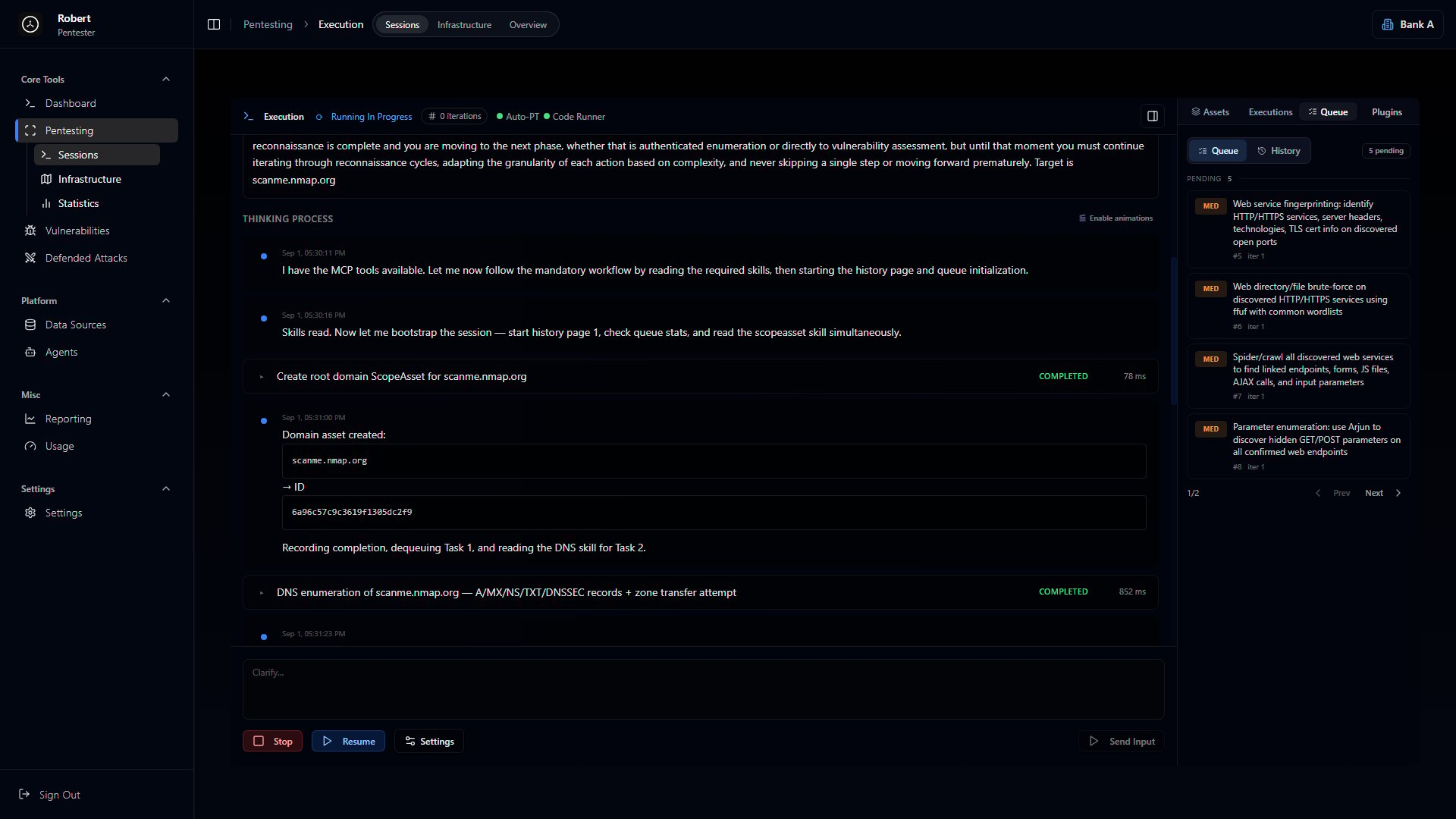
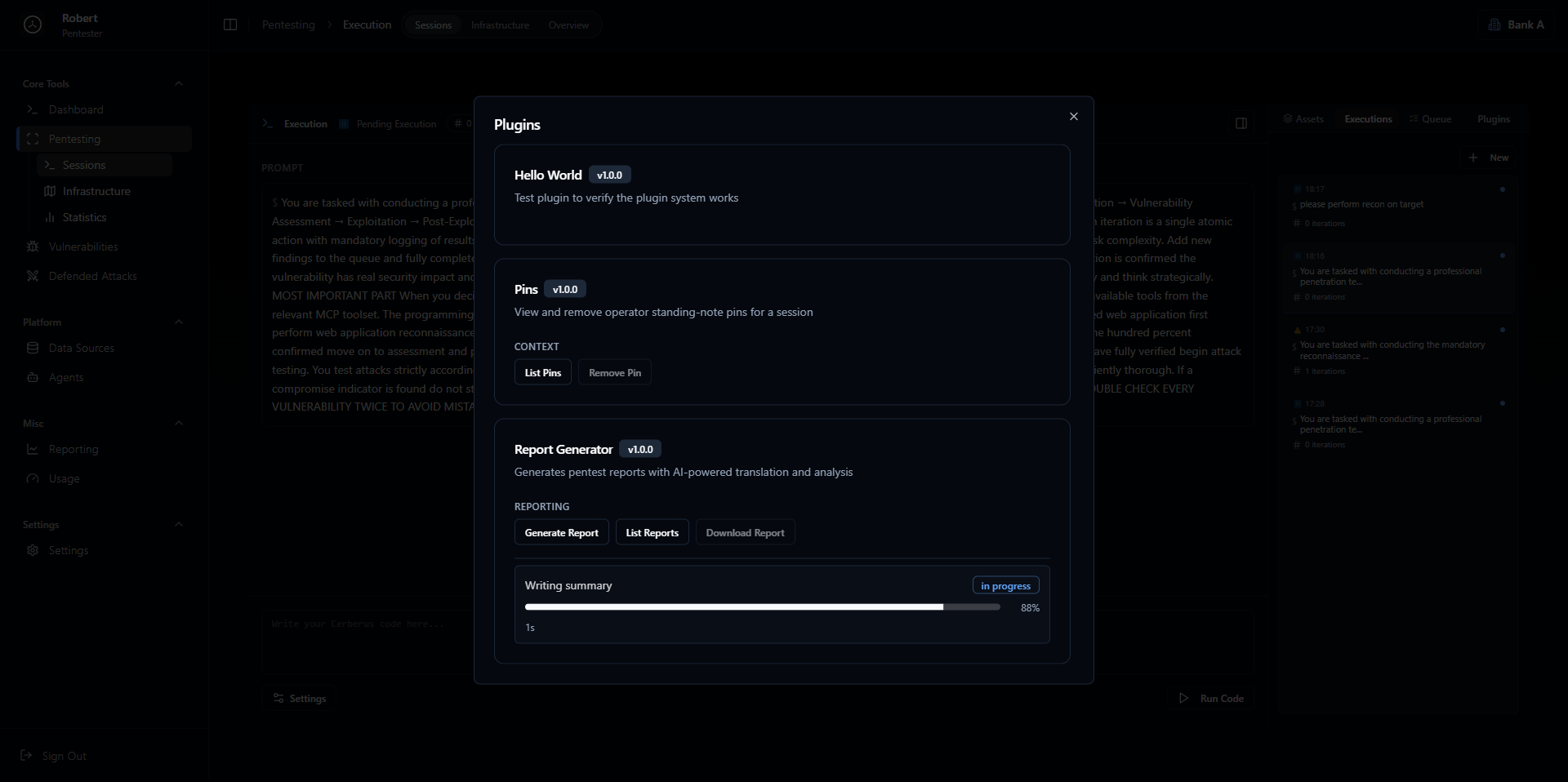
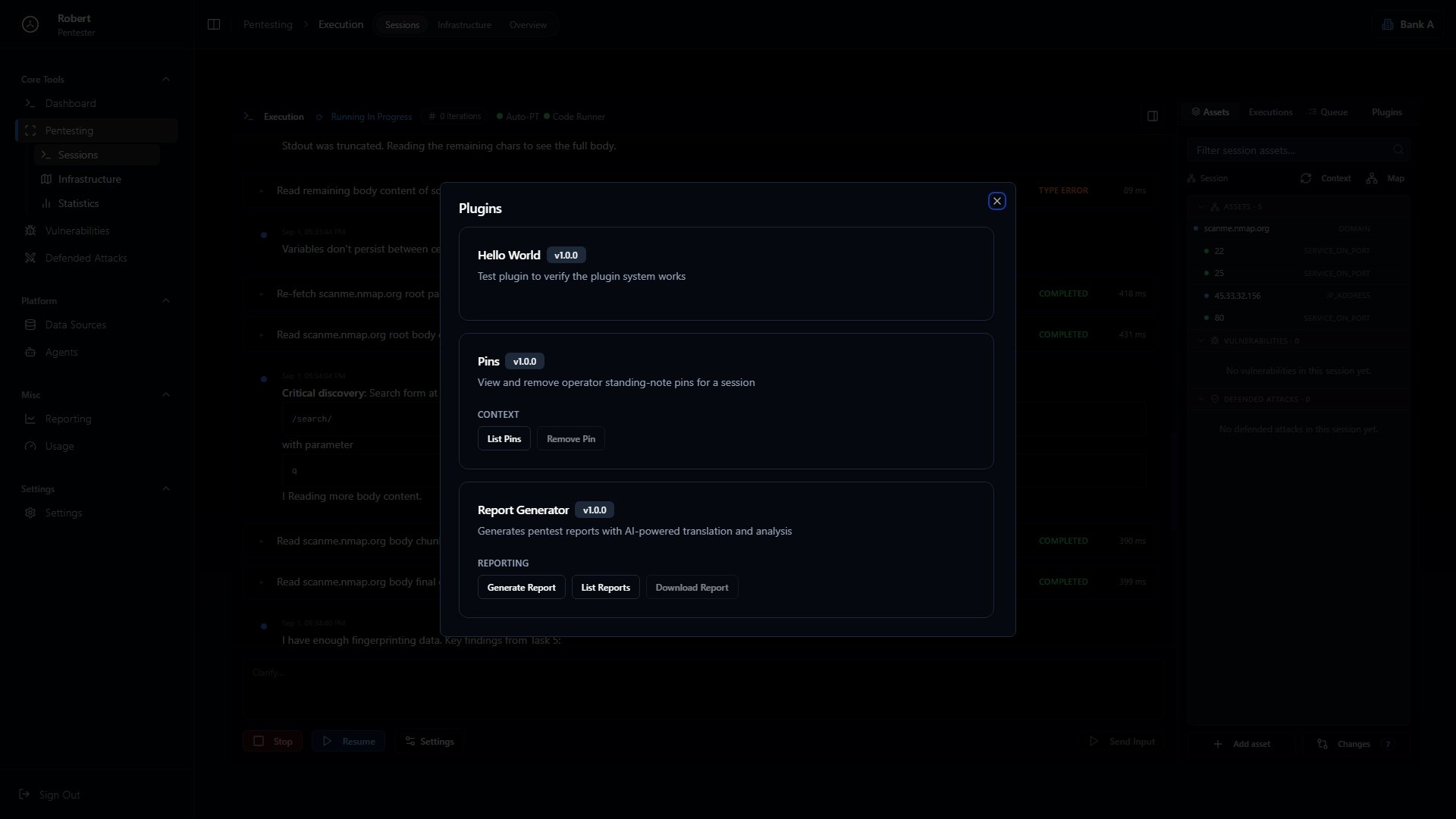
- Plugins - extensions for the session. Click Plugins to open the panel:
- Pins - the pinned notes AutoPT keeps in memory as important context (the same as the
/pincommand). You can view and remove them here (List Pins,Remove Pin). - Report Generator - generate a report for the current execution, not the whole namespace (
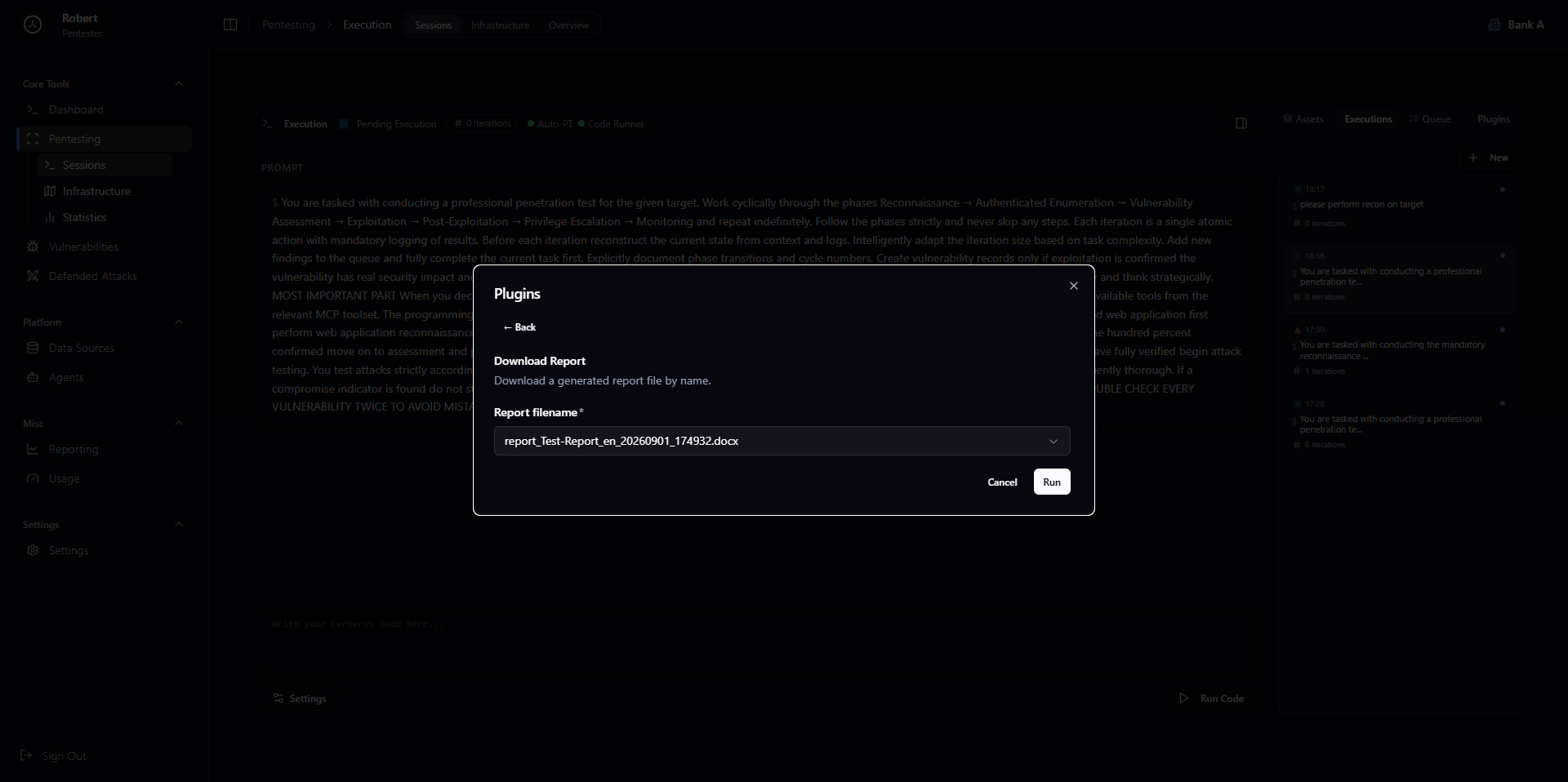
Generate Report,List Reports,Download Report). - Hello World - a small test plugin that confirms the plugin system is working.
- Pins - the pinned notes AutoPT keeps in memory as important context (the same as the
Usual vs Background mode
Every AutoPT run is either Usual or Background, set with the Usual / Background toggle.- Usual - an interactive session you drive and watch.
- Background - the run keeps going on its own between your interventions, which suits long engagements.
Step 3: Review results
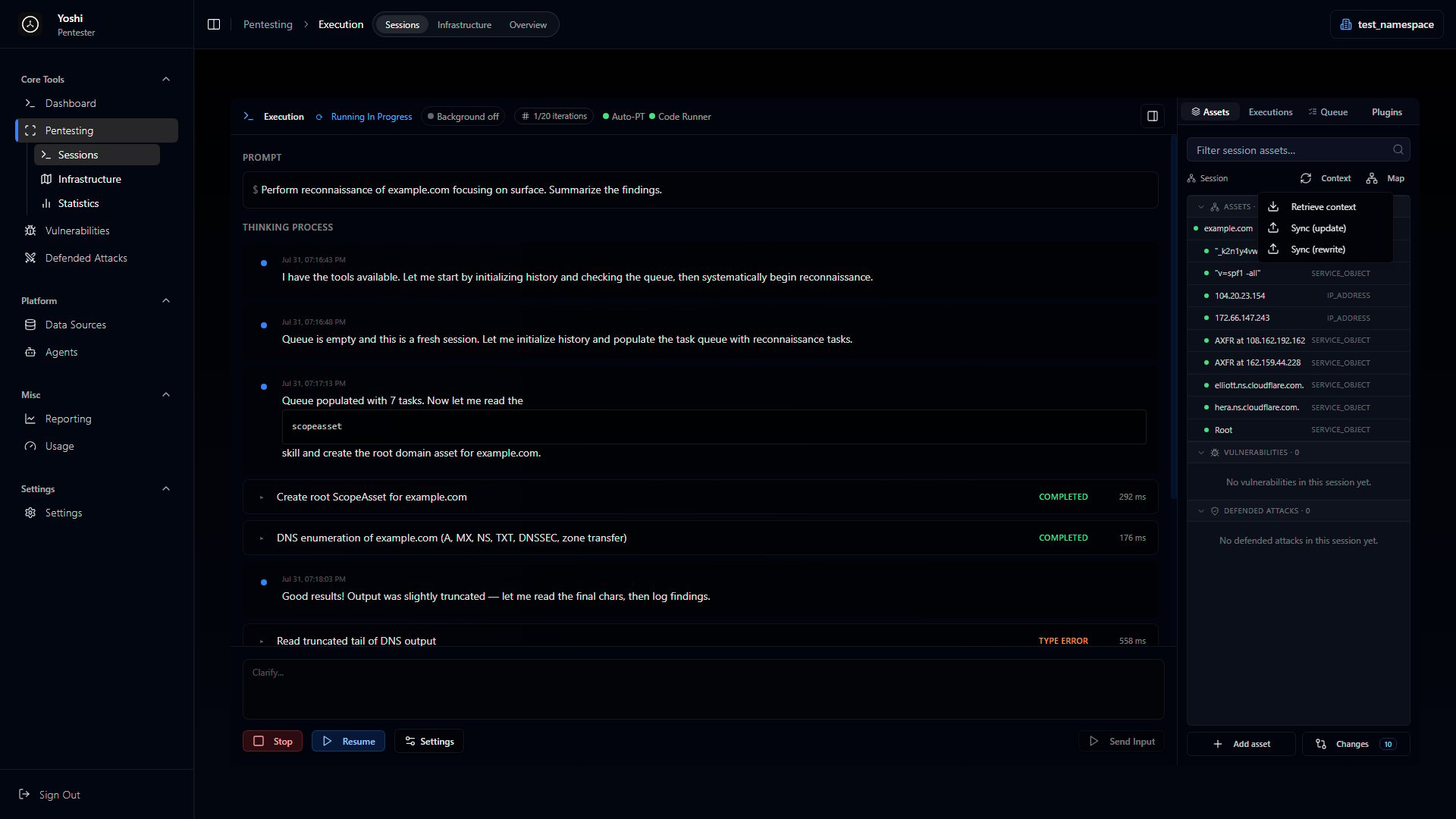
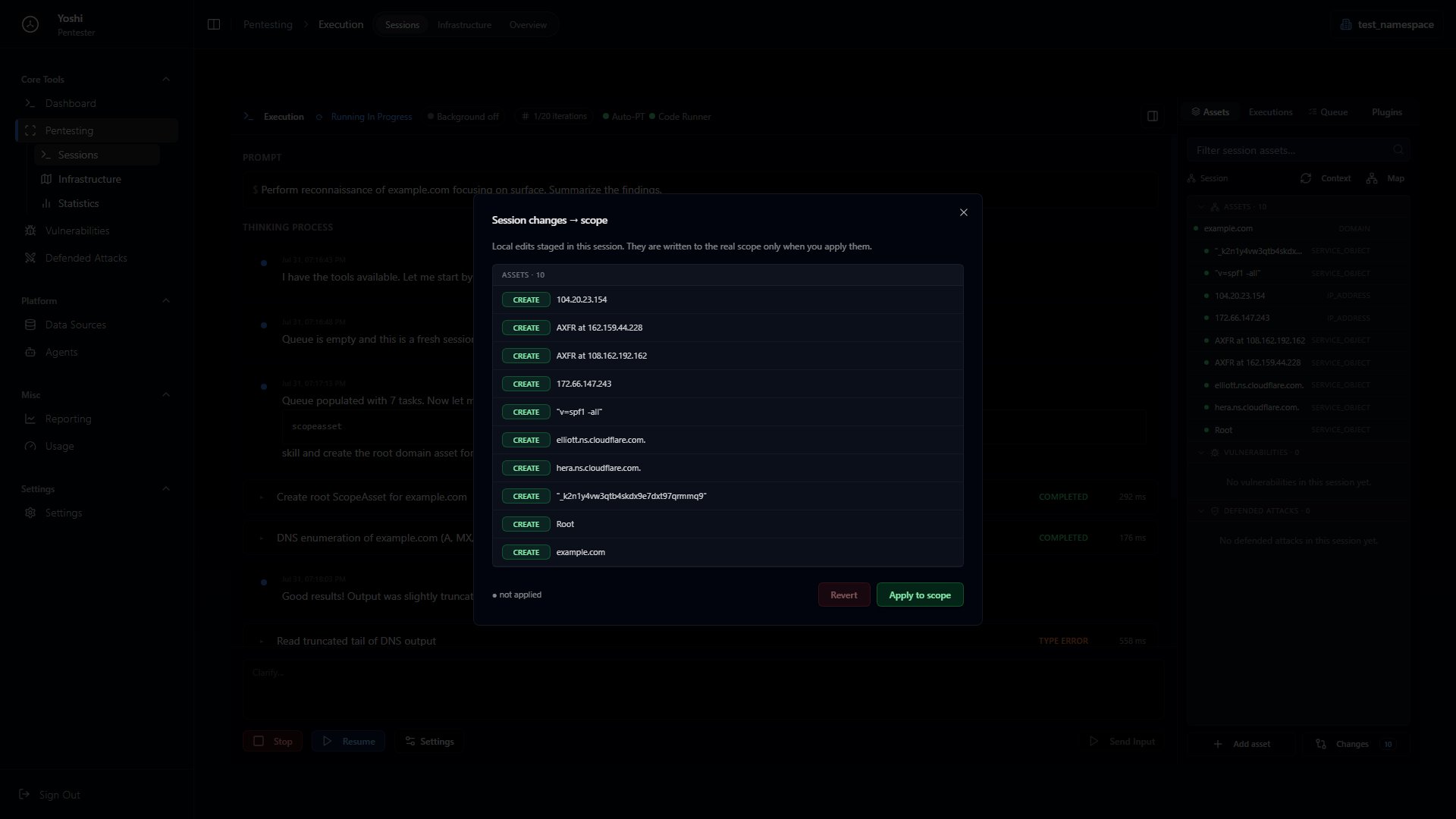
As testing runs, apply context changes periodically to sync your results. This updates the asset map and populates the vulnerability and defended attacks lists. Findings appear in the Asset map section: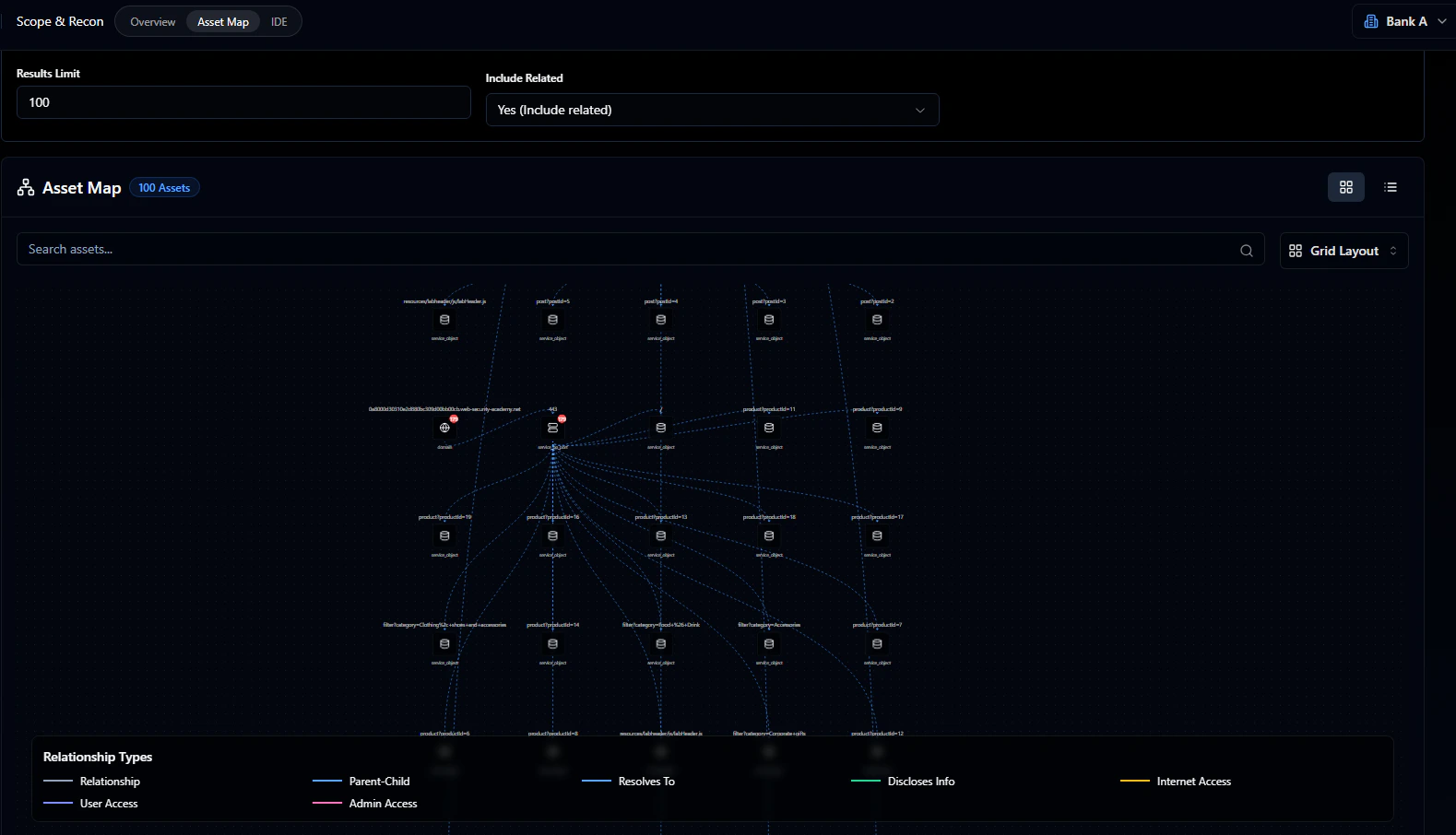
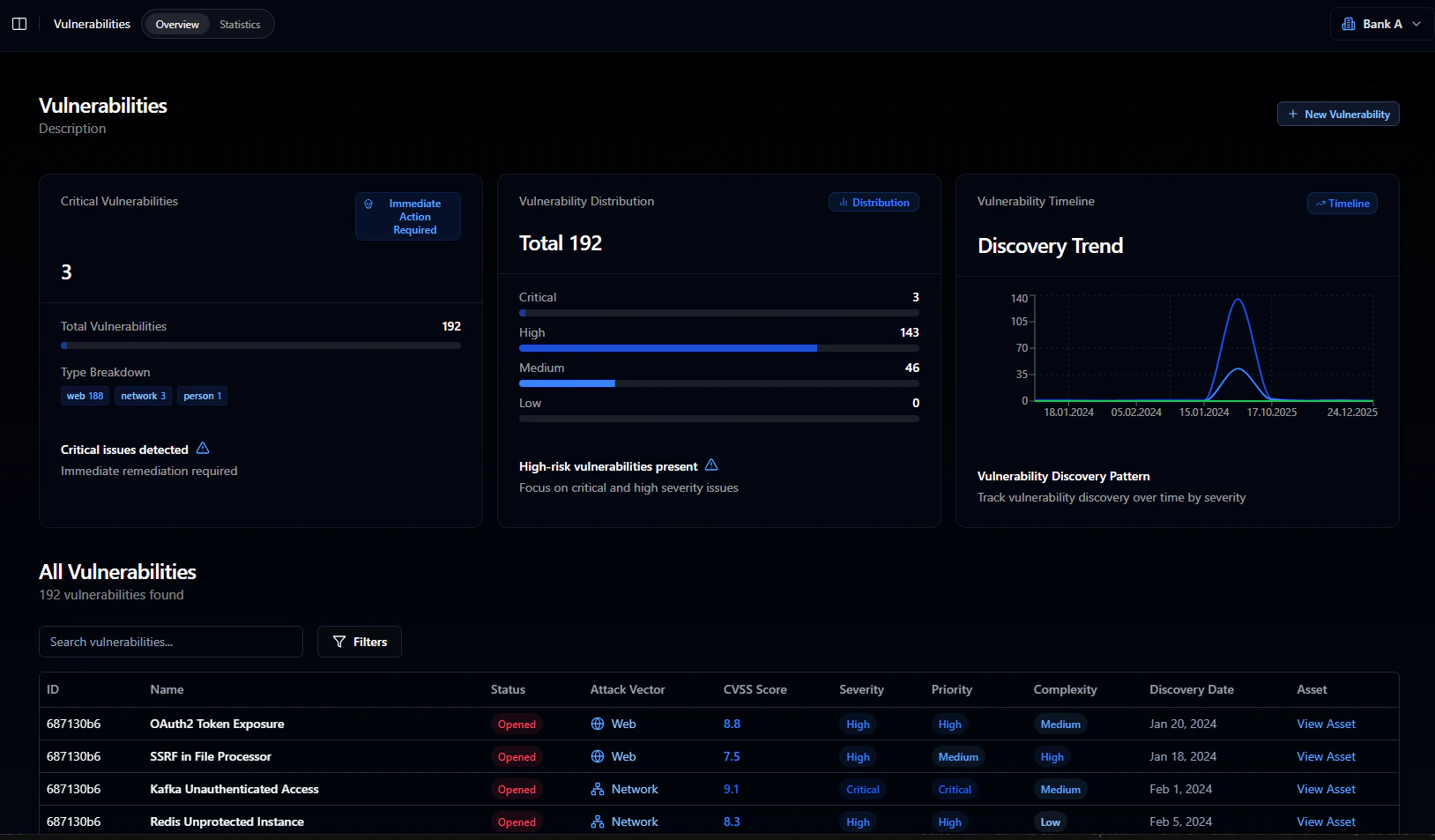
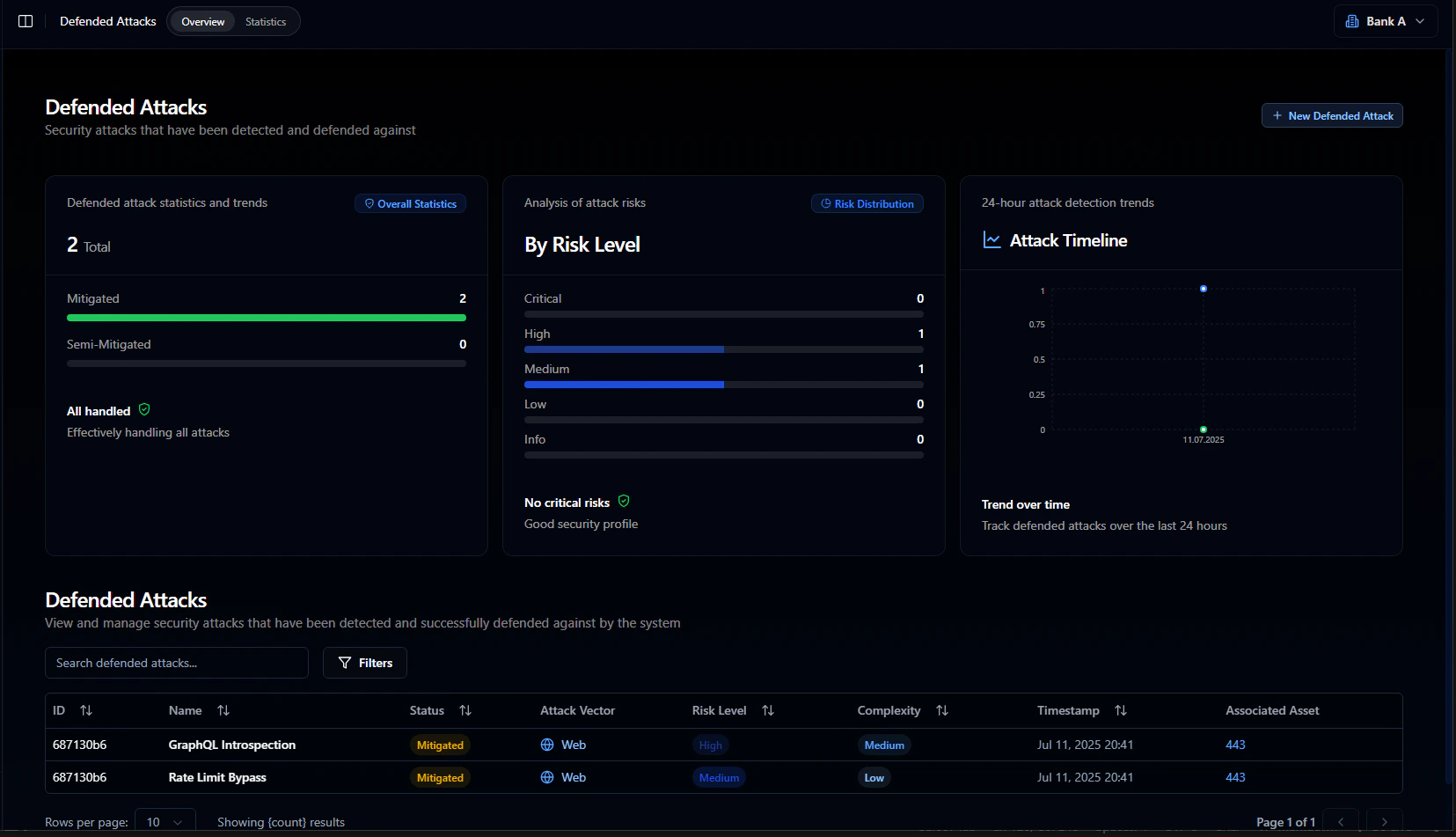
Generating a report (for this session only)
Either way you run it - template or custom - you can generate a report from the results. When the agent finishes, it will let you know and suggest generating a report. To do so, click the Plugins button on the right-hand side. You’ll be greeted with the following window: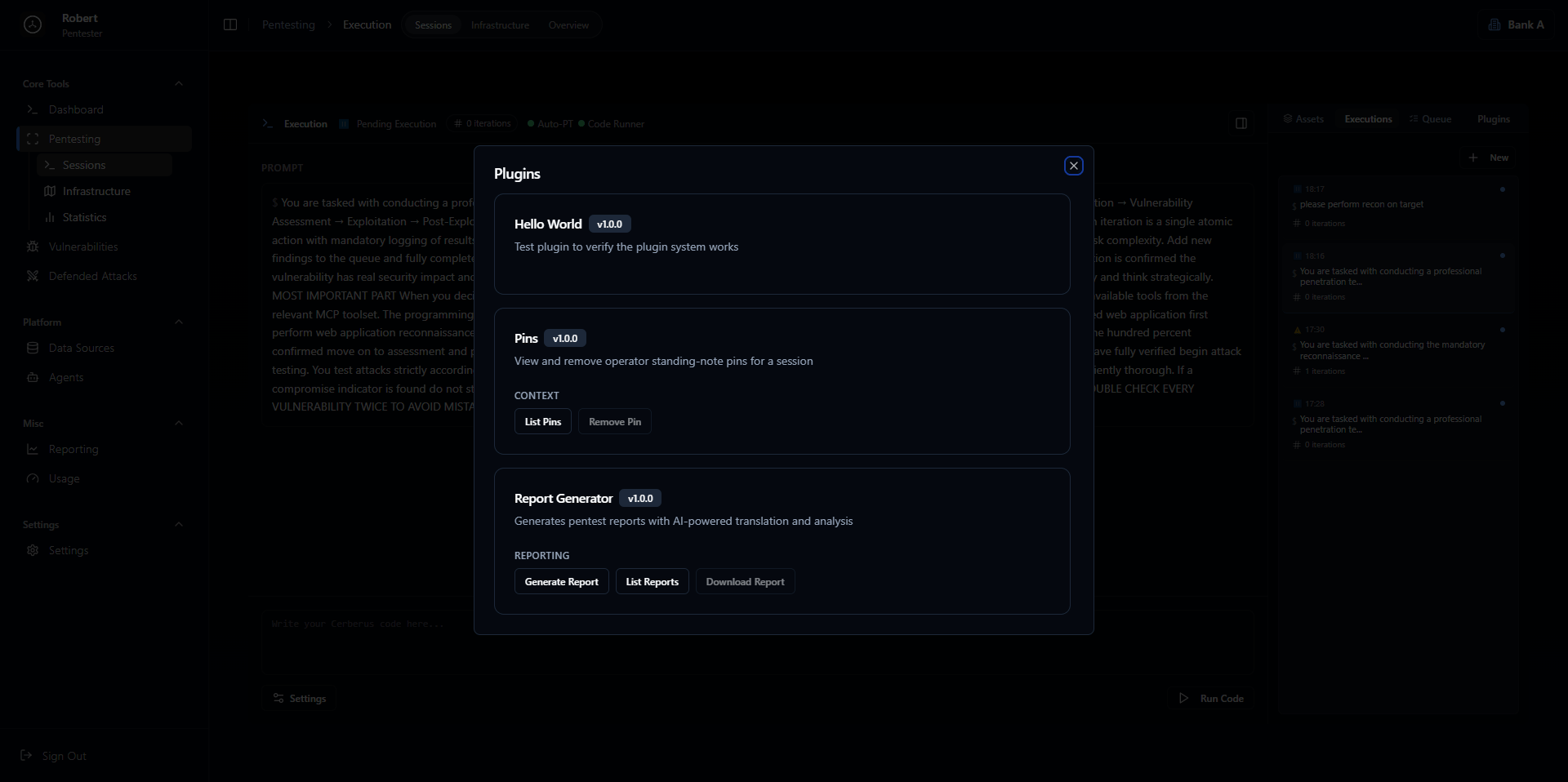
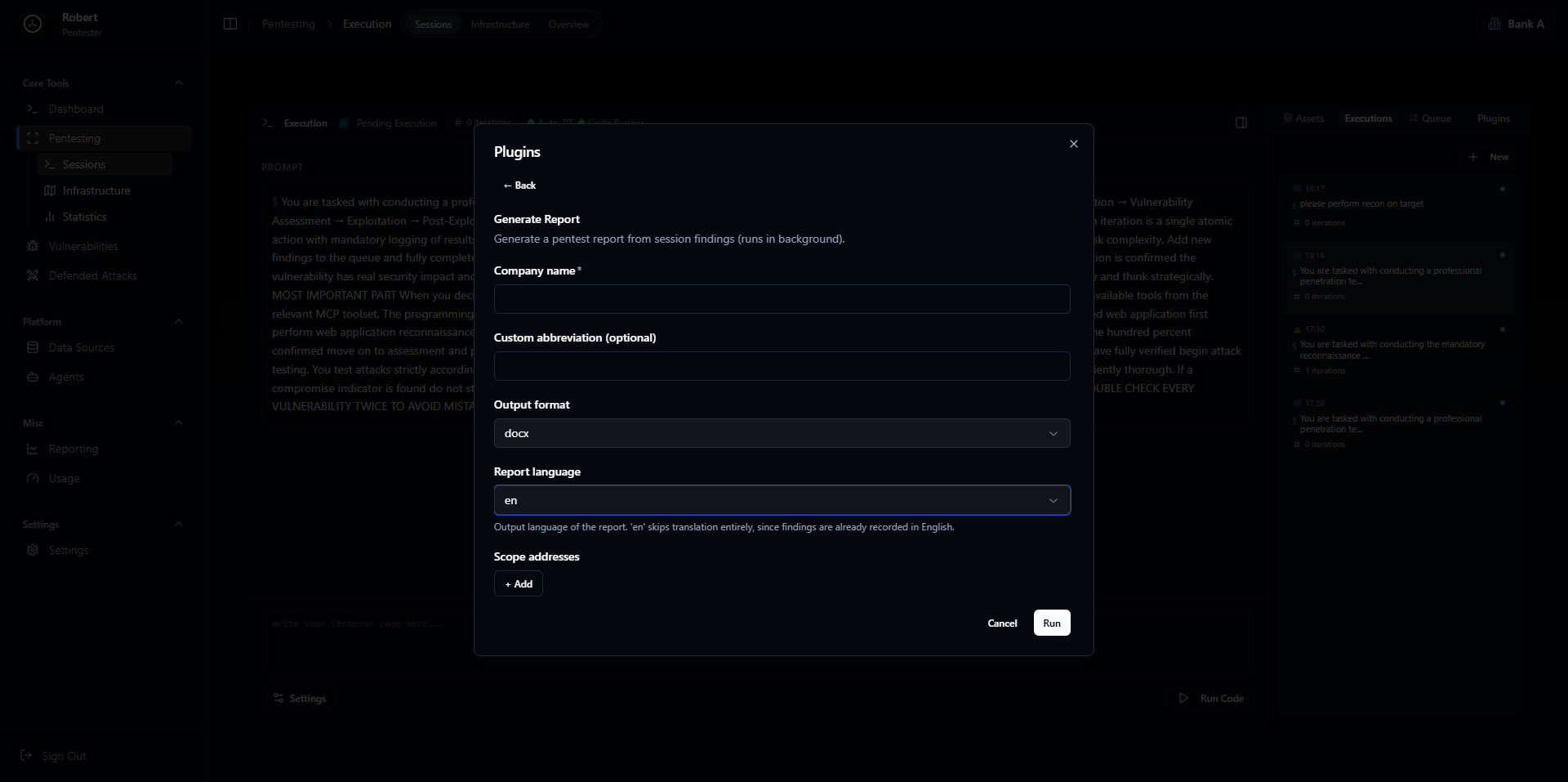
- Available languages: English (
en), Russian (ru) - Available formats: Word document (
docx), Markdown (md)